Manage user access to projects
Basic access control, which determines which users can manage Semgrep resources such as scans, projects, and findings, is managed in Semgrep AppSec Platform. This allows you to set varying levels of collaboration and visibility amongst users, which are the people who have been added to your organization, with access to Semgrep.
Semgrep primarily divides users into three roles:
- Admin
- Member
- Read-only
Optionally, you can appoint members to a fourth role: the manager role. Managers are a subset of members with some additional capabilities and scopes. In particular, they are able to assign specific projects to members through the creation of teams.
User permissions and visibility
Admins have full permissions, scopes, and visibility into all aspects of Semgrep.
Members can edit the following page in Semgrep AppSec Platform:
- Findings. They can view all projects in the Findings page, and can sort and triage findings.
Members can view the following pages in Semgrep AppSec Platform:
- Dashboard. They are able to see the total count of findings for all projects in the org.
- Editor. They can view an org's rules, but they can't write rules for the org. They can still write rules for their personal Semgrep orgs.
- Registry. They can view, but not add, rules and rule packs.
- Docs. Anyone can view the docs.
Members cannot view or perform any actions on the following pages:
- Policies
- Projects
- Settings
Teams (beta)
The Teams (beta) feature enables admins to grant or limit access to specific projects in Semgrep AppSec Platform. This provides more granular control than the Users feature alone. Teams helps security engineers and developers in large organizations focus on the projects that are relevant to their specific department or team.
You can quickly assign projects to large groups of users by first assigning users to teams and subteams within your organization. Once you've limited a user's access to a subset of your projects, their Dashboard and Findings pages all reflect that change. For example, their total finding count is based on the total number of findings of the projects they can access.
Roles and access
The Teams feature extends the existing roles defined in the Users tab.
- Admin
- A user who has access to all features, resources, and projects of their Semgrep deployment. Admins can also change the role of members and managers.
- When creating teams, admins are automatically included in all teams and can't be removed from any team. The access of an admin cannot be restricted except by making them a member.
- An org admin can change the role of any other user, including a fellow admin.
- Member
- A user who has access to some features, resources, and projects of their Semgrep deployment.
- To grant members access to a project and its findings, you must add the members to a team, and that team must be assigned to the project.
- Members can scan their local or personal repositories through a personal account.
- Members can also be assigned as Managers within a team.
- Read-only
- A user who can only view projects and issues of their Semgrep deployment.
You can assign a fourth role, the manager, in the context of a team. Managers are a subset of members:
- Manager
- A member who can grant access to projects by creating subteams and assigning members to these subteams.
- A manager role is restricted to the teams where they have been assigned as a manager. Users can be managers of some projects, but members for others. For more information, see the manager role.
Page and feature access per role
| Page | Read-only | Member | Manager | Admin |
|---|---|---|---|---|
| Dashboard | ⚠️ Restricted. Scope is limited based on team assignments and the project access granted to those teams. | ⚠️ Restricted. Scope is limited based on team assignments and the project access granted to those teams. | ⚠️ Restricted. Scope is limited based on team assignments and the project access granted to those teams. | ✅ Yes |
| Projects | ⚠️ Restricted. Projects assigned to teams are visible to users assigned to those teams. | ⚠️ Restricted. Projects assigned to teams are visible to users assigned to those teams. | ⚠️ Restricted. Projects assigned to teams are visible to users assigned to those teams. | ✅ Yes. Admins can see all projects. |
| Findings | ⚠️ Restricted. Read-only users can perform no triage operations. | ⚠️ Restricted. Members can perform all triage operations on Projects assigned to them. | ⚠️ Restricted. Managers can perform all triage operations on Projects assigned to them. | ✅ Yes |
| Policies | ❌ No | ❌ No | ❌ No | ✅ Yes. Only admins can view and edit policies. |
| Editor | ❌ No | 👁️ Read-only. Members can view all rules of an organization, but can't edit or create their own. They can create their own rules in their personal account. | 👁️ Read-only. Managers can view all rules of an organization, but can't edit or create their own. They can create their own rules in their personal account. | ✅ Yes |
| Settings | ❌ No | ❌ No | ⚠️ Restricted. Managers can see the Access and Account subpages. In the Access page, they can make edits to subteams they are managers of. | ✅ Yes |
Operations permitted per role
| Capability | Read-only | Member | Manager | Admin | Notes |
|---|---|---|---|---|---|
| Create or edit projects | ❌ No | ⚠️ Restricted | ⚠️ Restricted | ✅ Yes | |
| Change policies | ❌ No | ❌ No | ❌ No | ✅ Yes | |
| Triage findings | ❌ No | ⚠️ Restricted | ⚠️ Restricted | ✅ Yes | Members can perform all triage operations on Projects assigned to them. |
| Assign roles | ❌ No | ❌ No | ❌ No | ✅ Yes | |
| Create or edit teams | ❌ No | ❌ No | ❌ No | ✅ Yes | |
| Create or edit subteams | ❌ No | ❌ No | ✅ Yes | ✅ Yes | |
| Delete teams | ❌ No | ❌ No | ❌ No | ✅ Yes | |
| Delete subteams | ❌ No | ❌ No | ✅ Yes | ✅ Yes | A manager can delete the subteams they are a manager of, provided that there are no resources, such as projects, assigned to the subteam. |
| API | ❌ No | ❌ No | ❌ No | ✅ Yes |
Members and managers can create projects by scanning a repository using the Semgrep CLI tool, but they can't access the project related to the repository in Semgrep AppSec Platform unless an admin provides them explicit access to the project.
Semgrep Multimodal features permitted per role
| Page | Read-only | Member | Manager | Admin |
|---|---|---|---|---|
| Add a memory | ❌ No | ❌ No | ❌ No | ✅ Yes |
| Receive weekly priority emails | ❌ No | ❌ No | ❌ No | ✅ Yes |
| Add a memory during triage | ❌ No | ❌ No | ❌ No | ✅ Yes |
How team access works
- Members of a top-level team gain access to the projects of its subteams. They are indirect members of a subteam.
- Members of a subteam do not have access to the projects of teams or subteams above it.
In the following diagram, team 1 gains access to subteam 1b's projects, but team 1b does not gain access to projects from team 1.
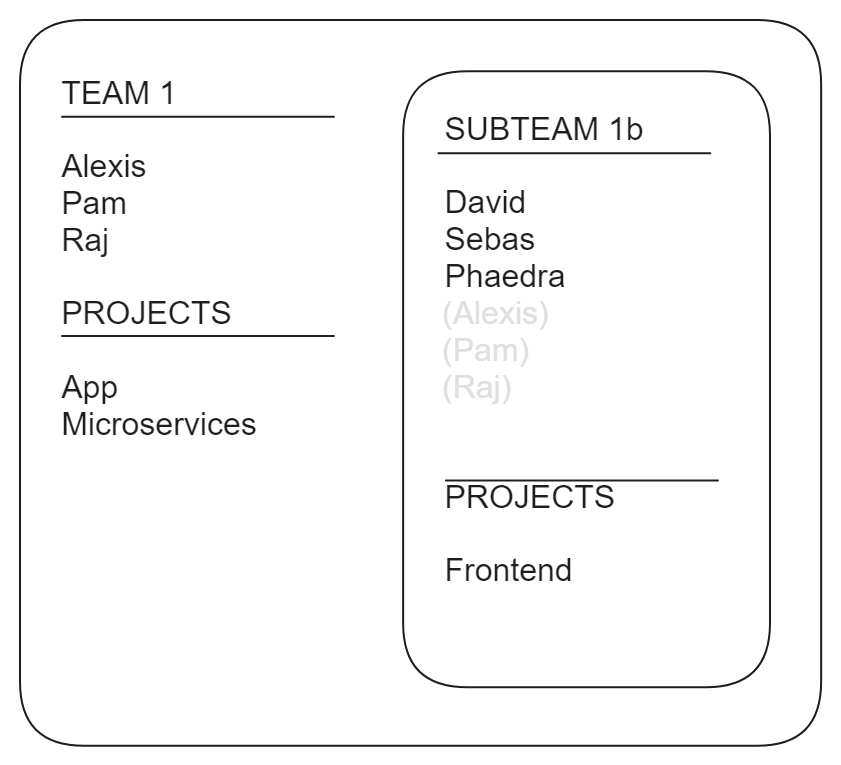
- The members Alexis, Pam, and Raj have access to the following projects:
- App
- Microservices
- Frontend
- The members David, Sebas, and Phaedra have access to the following projects:
- Frontend
If there is a user who is assigned read-only access to the deployment, but they need to be a member of specific teams, you must modify the user's roles at the team level to ensure that they can access those projects.
The manager role
Use the manager role to delegate the assignment of projects across many users. Managers can speed up the deployment of Semgrep into your organization by creating subteams to grant members access to projects.
Given a security engineer who is a manager of team A but a member of team B, with both teams having the same projects:
- The security engineer has manager access to the projects.
- The security engineer can create subteams for team A but can't create subteams for team B.
Additionally, the manager role is able to perform the following:
- Scan, including managed scans on new projects through the Projects page.
- Edit projects that their team is assigned to.
Managers cannot remove themselves from their team. Admins and co-managers of the same team or subteam can remove other managers.
Managers can view and assign any of the projects they manage from one subteam to another at any time.
For example, if Bob is a manager of Team A (assigned to projects Foo and Bar) and Team B (assigned to project Baz), Bob has access to all three projects: Foo, Bar, and Baz. Bob can also assign Baz to Team A.
Tips for creating teams and subteams
- Assign projects to only one team.
- Use subteams to grant access to a specific department's repositories: Create a top-level team for managers or security engineers in your organization who have broad access to a variety of repositories, then create subteams for members to grant them limited access to their specific department's repositories.
- Use flat teams to grant access to central projects that are used by a broad group of developers: It is best to create a separate flat team, without any subteams, and grant the users access to foundational or central repositories from that team. For example, projects that all engineers commit to can be named the Engineering Team.
Not finding what you need in this doc? Ask questions in our Community Slack group, or see Support for other ways to get help.